IT Setup: Salesforce Authorization, Configuration & Troubleshooting
Last updated: March 13, 2026
If you are an admin connecting Salesforce to Focal for your whole firm, and would like help with setting up the correct Salesforce objects, please contact support@meetwithfocal.com directly to go through our rep-assisted setup process.
Connecting Salesforce
Focal connects to your CRM to 1-click push summaries, tasks, and more. Focal can also enable 📄 Contact Sync to pull your contacts and historical notes from your CRM, to improve participant tagging, power Ask Anything across historical notes, and enhance meeting prep.
Focal supports almost all Salesforce versions and overlays, including FSC, XLR8, Practifi, Salentica, Quivr, etc.
Go to Settings > Integrations > Salesforce to connect your Salesforce account. Please follow the object mappings as determined by your admin and the Focal support team.
Admin App Installation: Salesforce
Starting in September 2025, by default Salesforce requires all connected apps to be installed before they can be accessed by non-admins.
Salesforce admins must connect and install Focal as a connected app in Salesforce before users will be able to use the Salesforce integration within Focal (OAuth connection). Salesforce admins must:
In Focal go to Settings > Integrations > Salesforce to connect your Salesforce account for the first time.
In Salesforce, go to Setup, enter OAuth in the Quick Find box, then select Connected Apps OAuth Usage.
Select Focal and click Install.
Click Manage App Policies to get details about the app.
Click Edit Policies to control the app’s access policies, and grant access for all users, or select users.
Article: https://help.salesforce.com/s/articleView?id=xcloud.connected_app_how_to_install.htm&type=5
Common Salesforce Troubleshooting
Connection Failed
If you have issues integrating with Salesforce, please log out of all Salesforce accounts, and then log back into the Salesforce account you wish to connect to Focal. Make note of the URL on your Salesforce login screen. Then, go back to Focal and go to Settings > Integrations > Salesforce to connect that specific Salesforce account, ensuring that the login URL is correct.
Generic OAuth Approval Error
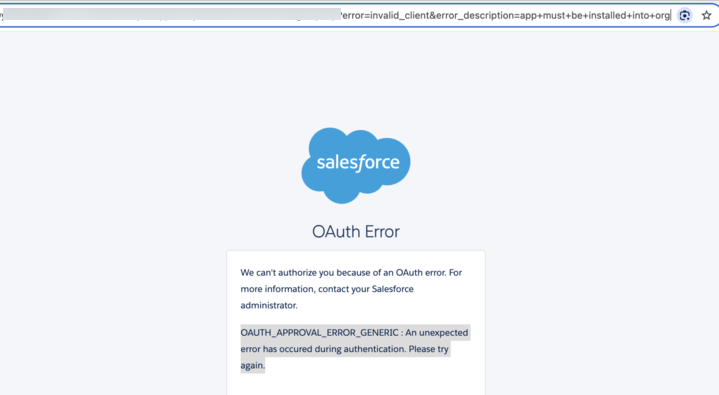
If you see this error, please contact your Salesforce admin to install the Focal connected app using the instructions above.
Article: https://help.salesforce.com/s/articleView?id=xcloud.connected_app_how_to_install.htm&type=5