Contact Sync
Last updated: November 17, 2025
Focal can pull and sync contacts from your CRM. If you have custom Salesforce objects, please contact support@meetwithfocal.com for a custom setup.
.
Setup
Go to Settings > Integrations and connect your CRM. If your CRM is already connected, please disconnect first.
When connecting or reconnecting your CRM, select "Enable contact sync". Depending on the number of contacts, it may take some time for the sync to complete.
Warning: If you've already created existing clients within Focal, please ensure the First Name, Last Name, and Email match the CRM contact before enabling contact sync. This will avoid duplicate entries within Focal.
How to Use
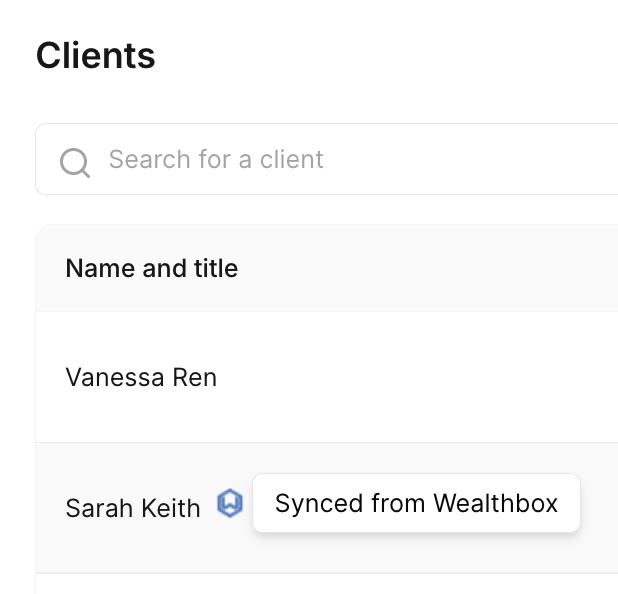
Contact sync will sync over available contacts from your CRM, into Focal's Clients tab. Availability is determined based on which contacts your connected CRM account has access to.
By syncing your contacts, Focal will be able to:
Auto-tag clients onto conversations based on matching email or phone information
Allow you to manually tag contacts as participants and speakers to organize your conversations and improve AI outputs
Display client profiles and access Ask Anything across past conversations for that client
By default, you can only view and access your own synced contacts in Focal. If other Focal users at your firm connect their CRM account and have access to the same contacts as you, the synced Focal Client will be shared across both of you.