IT Setup: Maximizer Integration
Last updated: August 4, 2026
Focal connects to Maximizer to sync your contacts, push meeting summaries, and push tasks directly to your CRM. Once connected, your Maximizer contacts populate in Focal automatically, and client edits sync between both platforms.
Connecting Maximizer
Setup has two parts: a firm admin connects and configures Maximizer for the whole firm, then each user connects their own Maximizer account.
Firm setup (admin)
In Focal, go to Settings > Firm integrations > Maximizer and click Configure.
On the Overview tab, review what the integration enables, then click Connect
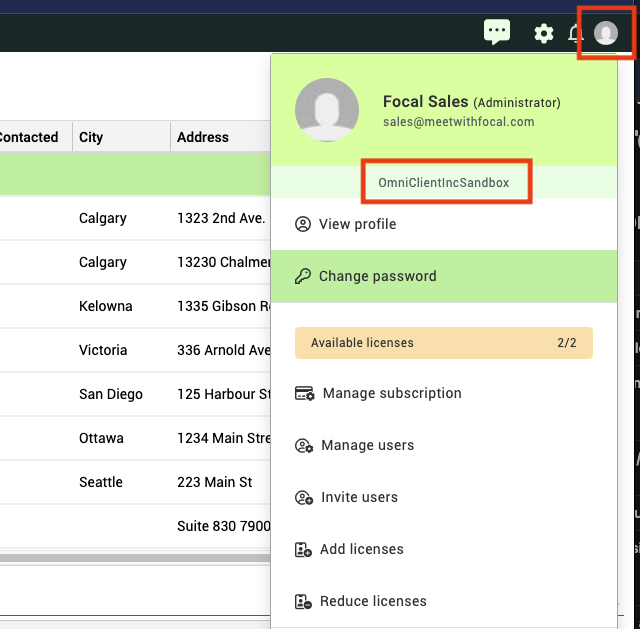
An Maximizer sign-in window opens. Enter your Maximizer Company Alias, then your Maximizer email and password. Find your Company Alias from your unique Maximizer login URL, or by logging into Maximizer, and clicking on your "Profile" icon (top right corner).
Finish configuring your Maximizer settings for your firm. Recommended values are below:
Config Question
Value
Enable Focal to sync contacts from your CRM
YES - this populates Focal's client tab with CRM contacts
Select the person object to sync
CONTACT - Focal uses email and phone from this object to detect who is in your meetings
What object do you want to save your summaries as
NOTE or INTERACTION - depending on how you want Focal summaries to appear when sent to CRM.
Can advisors attach summaries to the
Contacts Object / Leads Object / Households Object
YES (for all) - this allows you to choose which entities advisors can attach Focal summaries to.
User setup (each advisor)
In Focal, go to Settings > User integrations > Maximizer and click Connect.
Sign in with your Maximizer credentials when the window appears.
Once connected, go to Clients in the left sidebar to verify your Maximizer contacts have populated.
Contact sync
Maximizer → Focal: New contacts added in Maximizer appear in Focal automatically.
Focal → Maximizer: Contact edits made in Focal sync back to Maximizer (two-way client sync).
Synced contacts are editable within Focal under Clients.
Pushing meeting summaries to Maximizer
In Focal, go to Conversations and open a conversation.
At the bottom, use the Select CRM contact dropdown to choose the Maximizer contact.
Click Send to CRM.
Pushing tasks to Maximizer
In Focal, go to Conversations and open a conversation.
Open the Tasks tab.
Check the box next to each task you want to send.
At the bottom, use the Select CRM contact dropdown to choose the Maximizer contact.
Click Send to CRM.
The task will appear under the contact in Maximizer.
Maximizer Data for Ask Focal and Meeting Prep
Ask Focal questions about your clients to search across Focal conversations, and specific fields in Maximizer. Currently only a number of profile fields are supported for this feature - past Maximizer notes and tasks are not supported at this time.
Please contact support@meetwithfocal.com and support@maximizer.com with feedback on additional fields you'd like to see.
Troubleshooting
Connection fails on first attempt: Go to Settings > Firm integrations > Maximizer, click Disconnect, and repeat the configuration steps above.
Contacts not appearing after connecting: Refresh your browser, then navigate to Clients. If contacts still don't appear, disconnect and reconnect the integration.
Sign-in issues: Make sure you're using your Maximizer credentials and that your Maximizer account is active.