FAQ: Enable French Translation — Prise en charge du français
Last updated: April 3, 2026
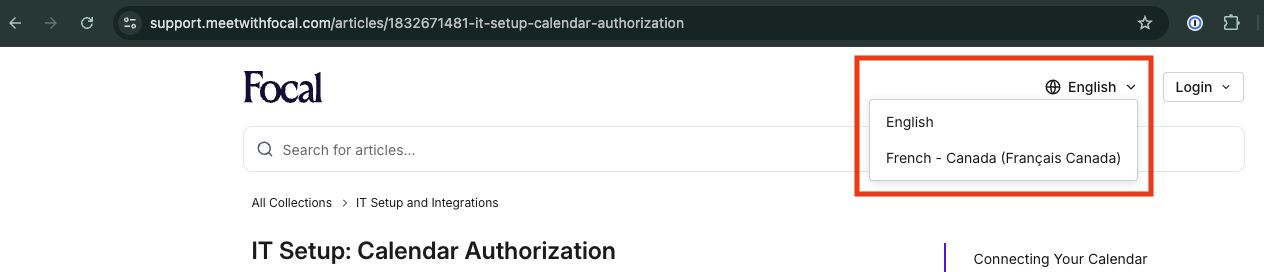
To change this article's language, please select French from the dropdown at the top right of the screen.
Pour changer la langue de cet article, veuillez sélectionner le français dans le menu déroulant situé en haut à droite de l’écran.
Translating Focal AI Outputs into French
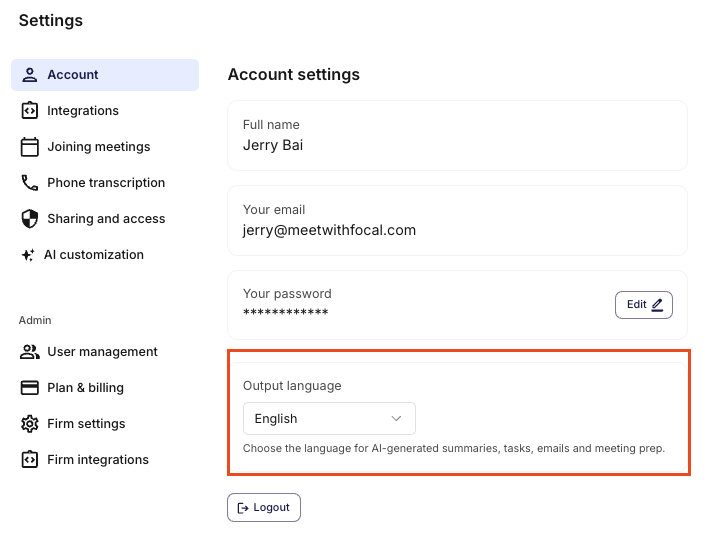
To translate all AI-generated content in Focal:
Open Focal.
Go to Settings.
Navigate to Account.
Locate the language or output language setting.
Change the setting to French (Canadian).
This controls the language used in AI responses within the app.
Translating the Focal Application into French
For Google Chrome
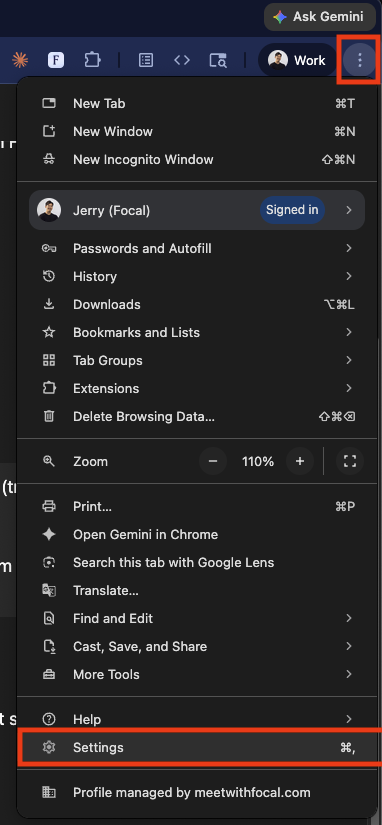
Step 1: Open Chrome Settings
Click the three-dot menu in the top-right corner of Chrome and select Settings.
Step 2: Enable Translation and Set French
Go to Languages in the left sidebar.
Turn on Use Google Translate.
Set Translate into this language to French - français.

Step 3: Translate the Focal App
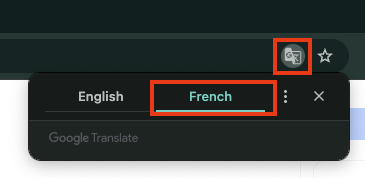
Open Focal in Chrome.
Click the Translate icon in the address bar.
Select French.
Chrome will render the entire Focal interface in French.
For Microsoft Edge
Step 1: Open Edge Settings
Click the three-dot menu in the top-right corner of Edge and select Settings. Then navigate to Languages.
Step 2: Enable Translation
Turn on Offer to translate pages that aren't in a language I read.
Step 3: Translate the Focal App
Open Focal in Edge.
Click the Translate icon in the address bar when it appears.
Select French, then click Translate.
Edge will render the entire Focal interface in French.