FAQ: How do I increase meeting summary accuracy?
Last updated: June 30, 2026
Answer
Focal meeting summaries are driven by the transcript and by who Focal believes was in the meeting. You can improve accuracy before a meeting by connecting your CRM and picking the right calendar event, and you can fix an inaccurate summary after the fact by correcting participants and speaker labels, then reprocessing.
Part 1: Set up for best results
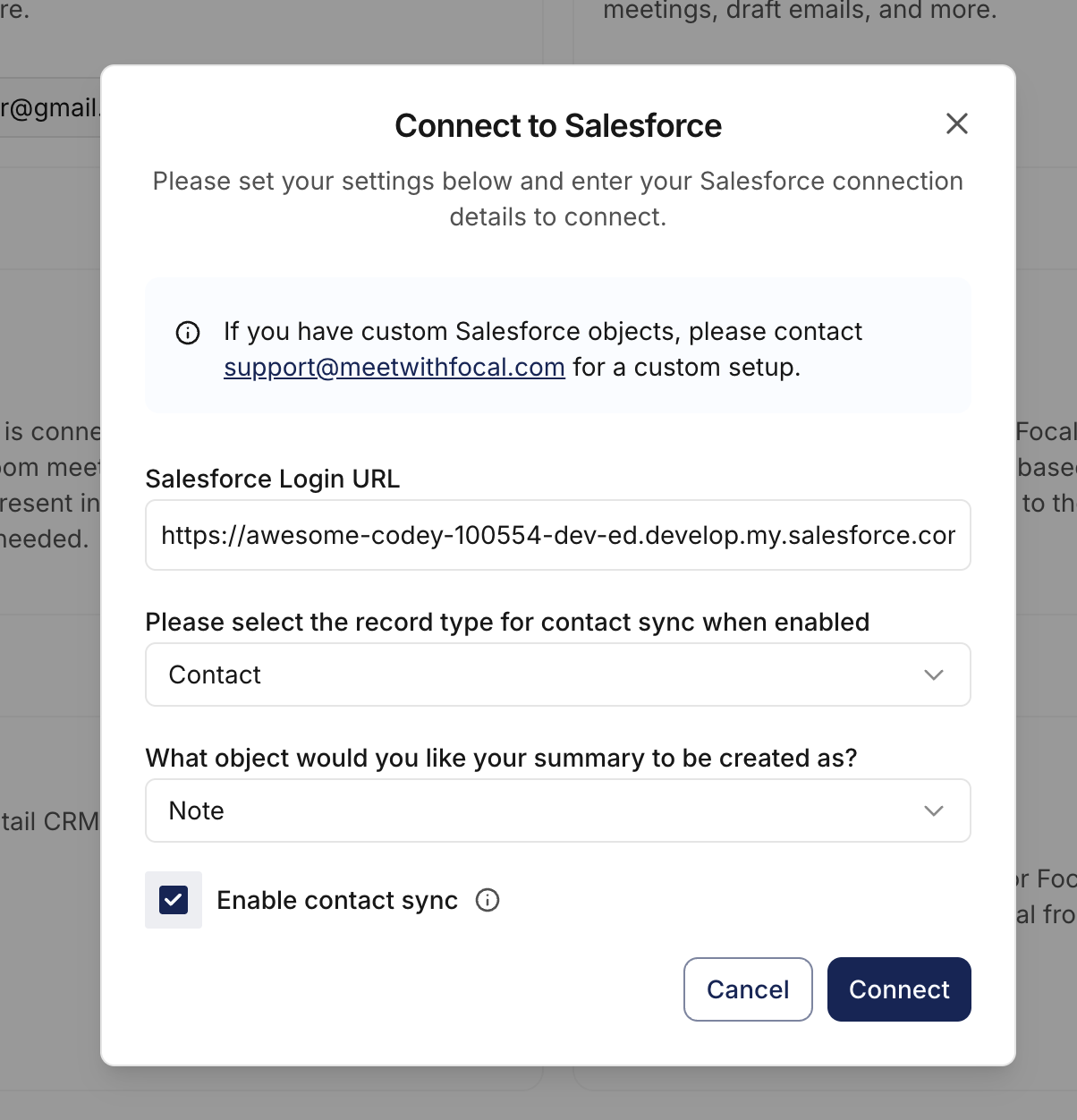
Connect your CRM with Contact Sync enabled
Summary accuracy improves significantly when Focal can match participants to known contacts in your CRM. When you connect Salesforce, Redtail, or Wealthbox, make sure Enable contact sync is checked during setup so your CRM contacts flow into Focal automatically.
Select a calendar event when uploading audio or transcribing an in-person meeting
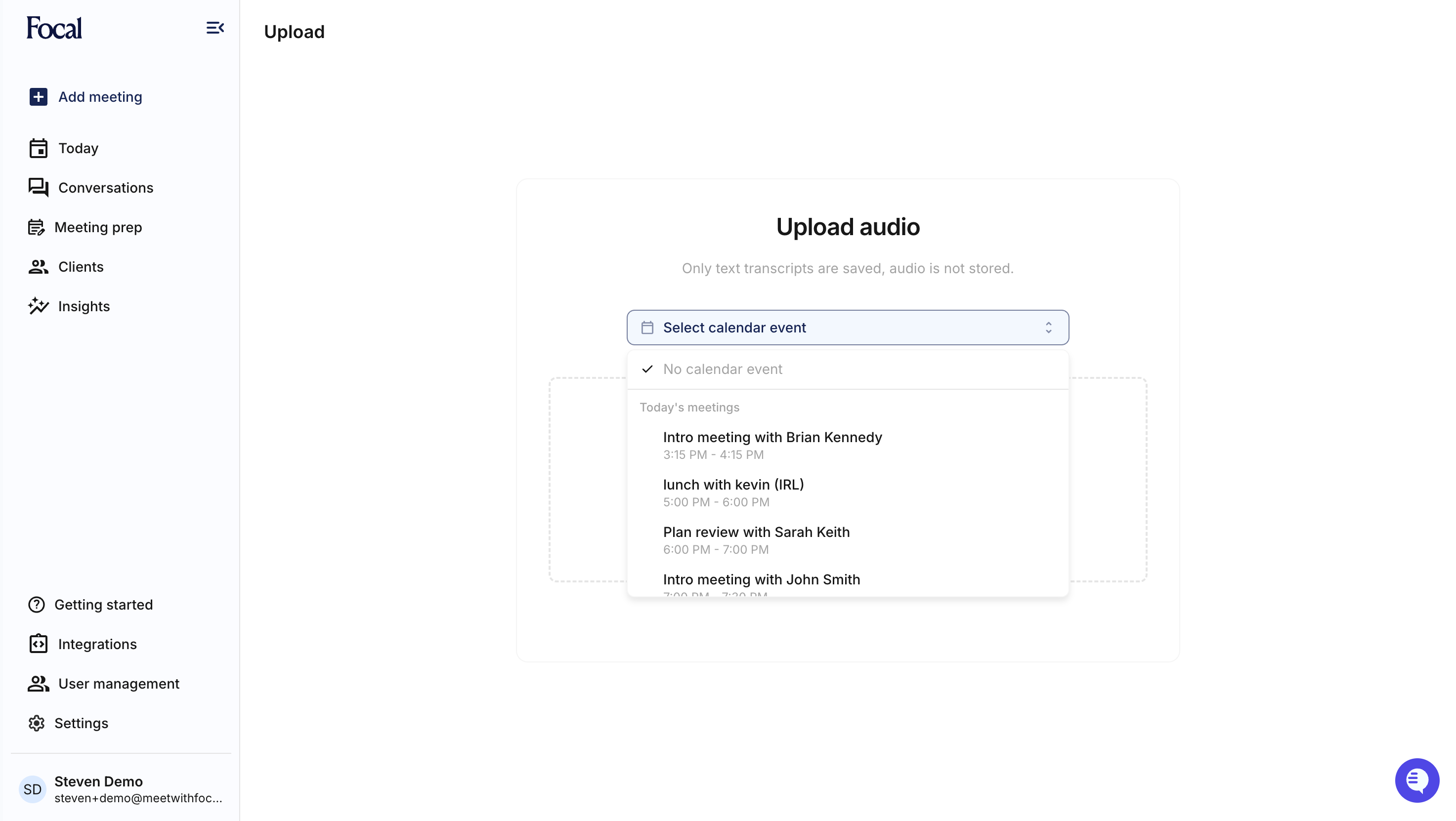
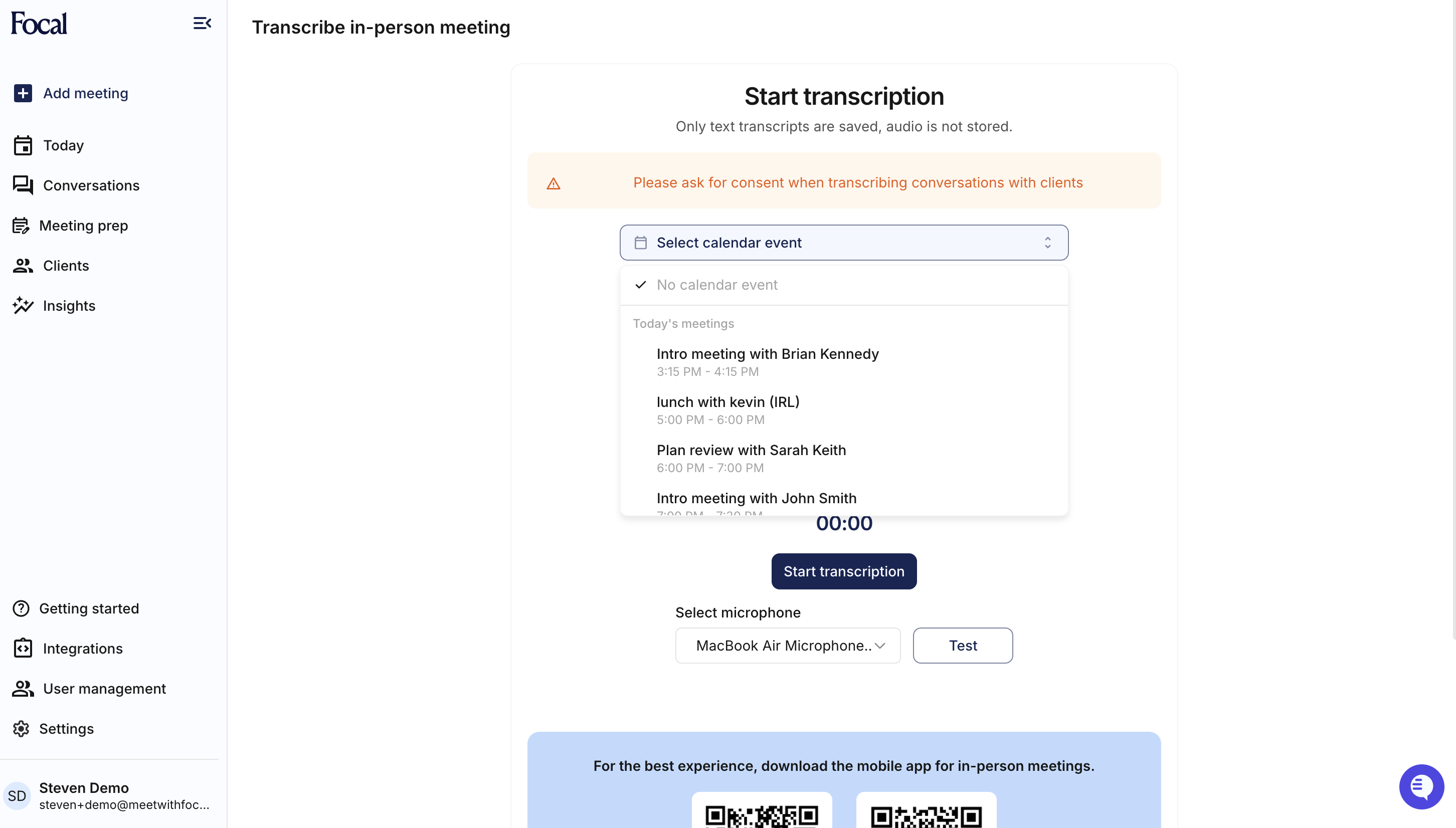
When you upload an audio file or start an in-person transcription, choose the matching meeting from the Select calendar event dropdown. Picking the event that already has your clients’ names and emails attached helps Focal identify speakers more reliably.
Uploading an audio file:
Transcribing an in-person meeting:
Part 2: Fix an inaccurate summary
If your summary is missing participants or did not pick up the right speakers, correct them and then reprocess the conversation.
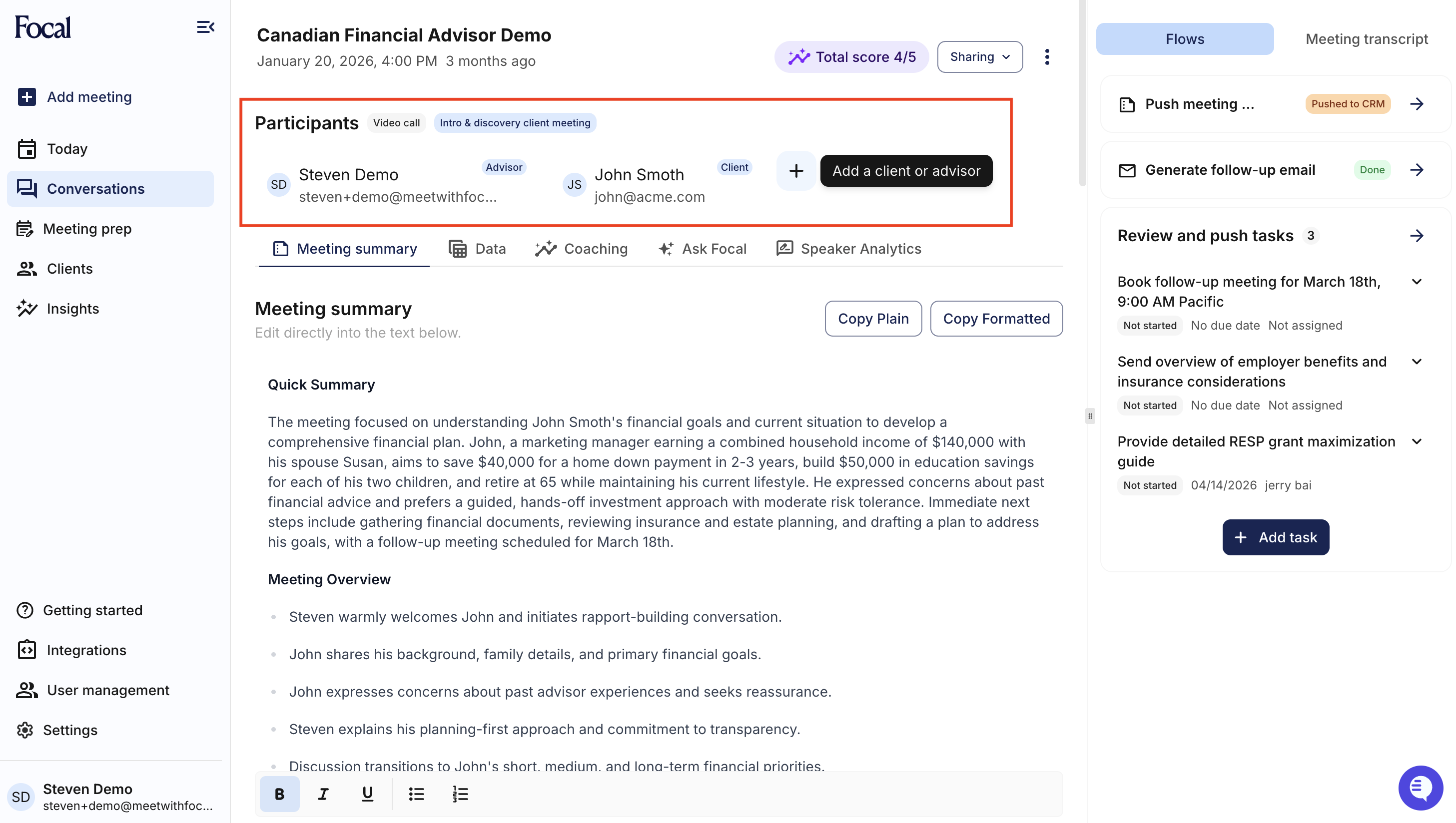
Step 1: Add the missing participants
Open the conversation and find the Participants row at the top of the meeting summary. Click Add a client or advisor and search for any missing people. You can create new clients from this search if they do not already exist in Focal.
Step 2: Open the Meeting Transcript panel
Click Meeting transcript in the top-right corner of the conversation to open the transcript panel on the right.
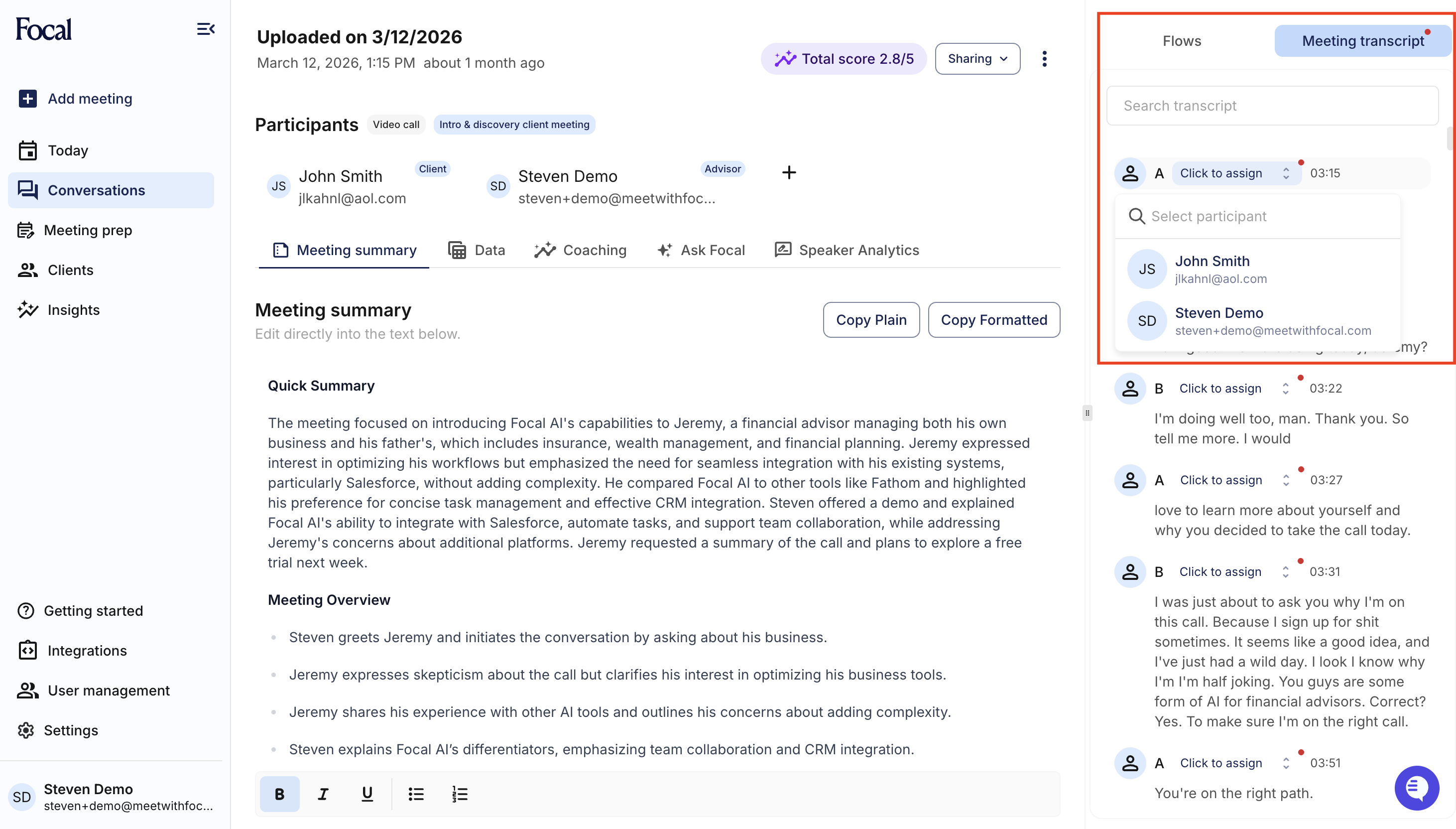
Step 3: Assign each speaker
For each unassigned speaker (Speaker A, Speaker B, Speaker C, and so on), click the Click to assign dropdown and select the correct client, advisor, or team member.
Note: Once you assign a speaker, every other line spoken by that same speaker throughout the transcript is re-labeled automatically — you do not need to assign each line individually.
Step 4: Reprocess the conversation
Once participants and speakers are correct, open the three-dot menu on the conversation and click Reprocess. Focal will regenerate the summary using the updated information.
Need help?
If the summary is still inaccurate after reprocessing, reach out to the Focal support team at support@meetwithfocal.com.