New User Setup & Getting Started Guide
Last updated: September 25, 2026
Welcome to Focal. We're excited to help you save 8h+ a week and deepen your client relationships with AI. Here's what you need to know to onboard:
Setup
First login: Open the "Welcome to Focal" email to activate your account. Bookmark our login page: app.meetwithfocal.com.
Connect Your Calendar: Connect your Google or Microsoft calendar under Settings > Integrations. Focal displays your calendar events on the Today page, and joins via the video meeting URLs from your calendar. If you use Zoom, it will work automatically after connecting your calendar.
Connect Your CRM: Connect your CRM under Settings > Integrations to push summaries / tasks to your CRM clients, and sync clients between Focal and your CRM.
Configure Your Auto-Join Preferences: In Settings > Join Meeting, select which calendar events you’d like Focal to join automatically, and customize the notetaker name.
Setup Phone Call Transcription: In Settings > Integrations, follow the instructions to enable transcriptions & summaries for phone calls with your clients.
Getting Started
Compliantly Transcribe Client Meetings
Focal never stores any audio or video data for compliance, and transcribes across all types of client conversations including video, in person, phone calls, and past audio recordings.
Video Meetings
Change the toggles on the Today page to determine which video meetings Focal automatically joins. Use the "Add Meeting +" button to manually join an ongoing video meeting via URL.
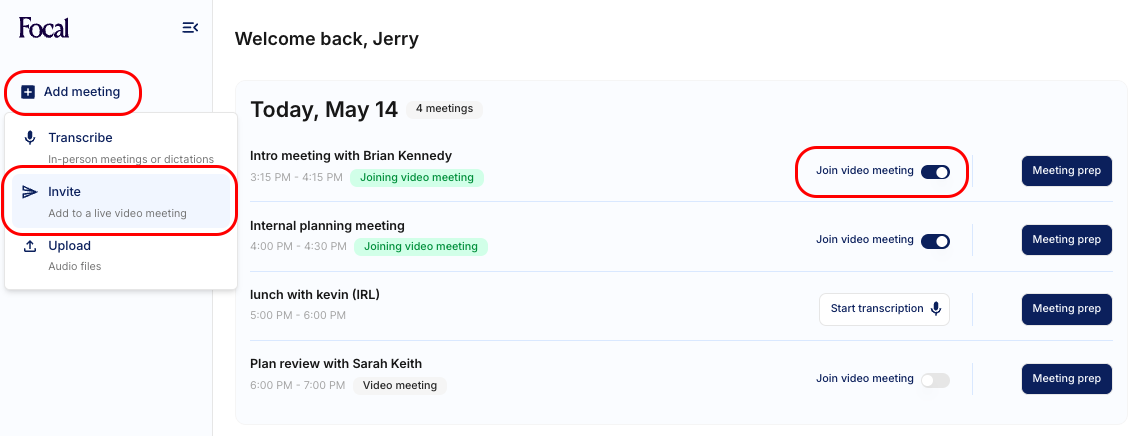
Note: To automatically join an upcoming video meeting without connecting your calendar, invite assistant@meetwithfocal.com to calendar events with video links where you are the host.
In Person Meetings
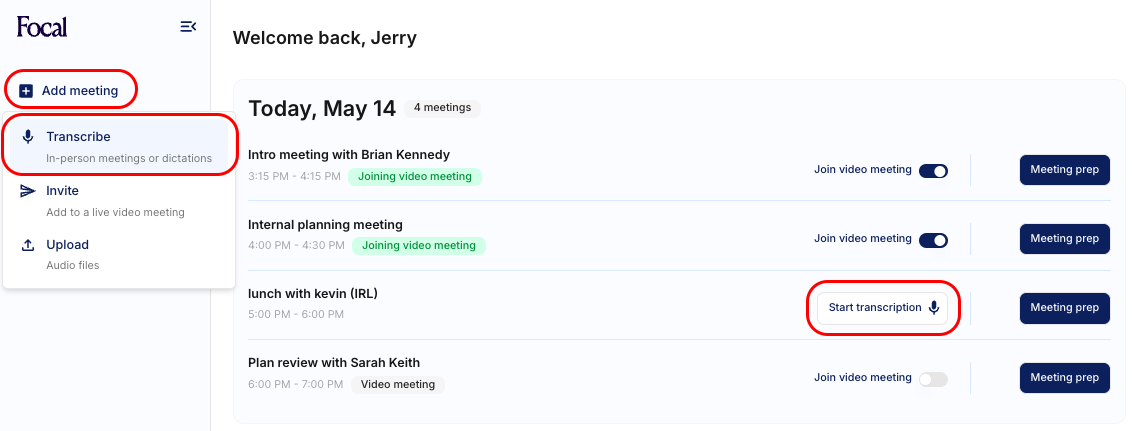
Use the "Add Meeting +" button, or buttons on the Today page to transcribe in-person meetings. You can use this feature to dictate notes or past meetings too. Download our mobile apps for easier transcription and dictation.
Phone Calls
Transcribe client calls by setting up your number under Settings > Phone transcription, and then merging the Focal number into a 3-way conference call. You can think of this as similar to adding the notetaker to a video meeting.
Generate Summaries, Tasks, and Followup Emails
Finding Your Notes
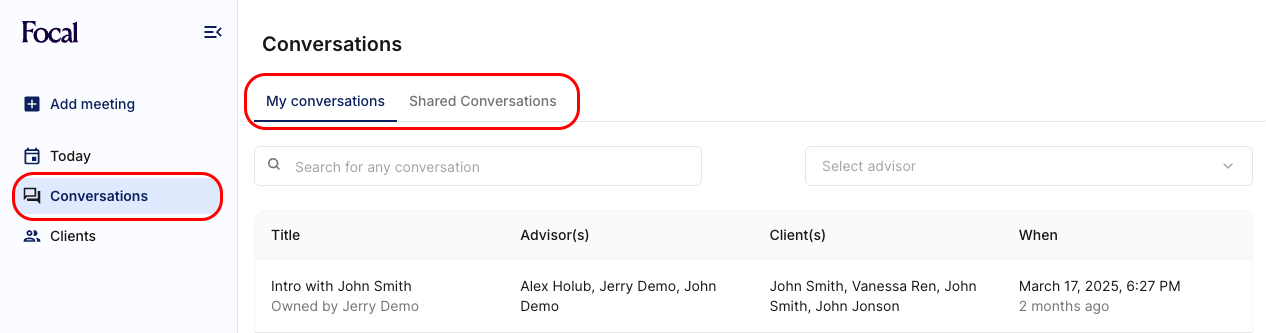
Each meeting produces a conversation with a summary, tasks, a client followup email, and more. Find your transcribed meetings under Conversations > My Conversations. Find ones shared with you across the firm under Conversations > Shared Conversations.
On the conversation detail screen, the meeting’s outputs are organized into tabs: an editable meeting summary on the Summary tab, AI-extracted action items on the Tasks tab, and an AI-drafted client email on the Follow-up email tab.
CRM Sync & Follow-up Emails
From a conversation you can:
Send the summary to your CRM — on the Summary tab, pick the client’s record in Select CRM contact, then click Send to CRM. A status dropdown next to the Meeting summary heading tracks the workflow — Not started, Sent to CRM, or Done. See How do I send a meeting summary to my CRM?
Send tasks to your CRM — the Tasks tab lists the action items Focal AI extracted from the meeting as editable task cards. Choose which ones to send with their checkboxes, then use the same Select CRM contact + Send to CRM footer. See How do I manage and send tasks from a conversation?
Generate a follow-up email for your client — the Follow-up email tab holds an AI-drafted recap of the meeting plus action items, ready to edit and hand off to your email program with Open in mail. See How do I generate and send a follow-up email?
Summary Accuracy and Meeting Reprocessing
Focal automatically uses AI to detect the different participants and speakers. A conversation’s meeting type appears as a label in the conversation page’s header, right under the title — for example, "Intro & discovery client meeting". See Where do I see a conversation's meeting type?
Focal uses the associated calendar event, and contacts synced from your CRM to improve participant & speaker detection.
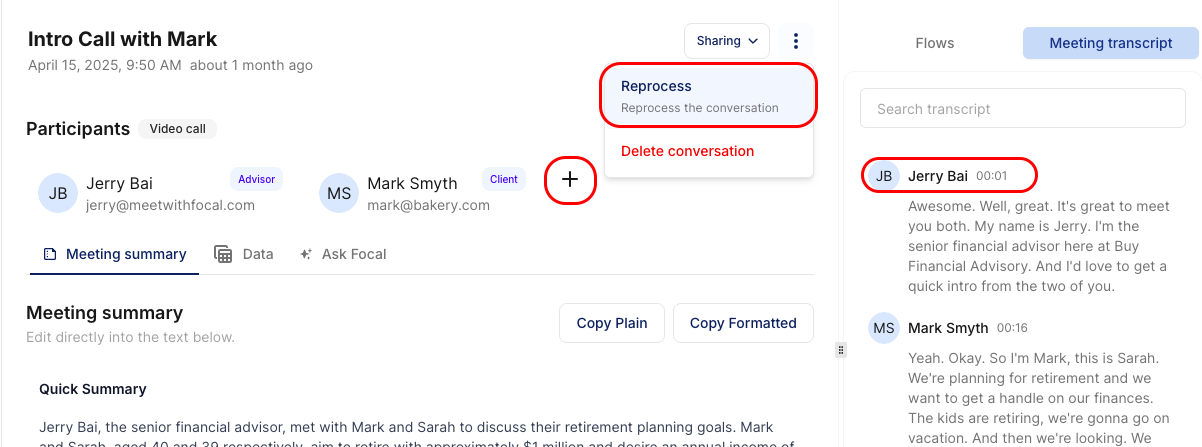
Please connect your calendar and CRM for best results. If something seems off after the conversation processes, you can re-assign participants, speakers, and regenerate the summary.
For more tips on improving accuracy, see here.
Generate Meeting Prep, Agendas, and Agenda Emails
Meeting Prep and Agendas
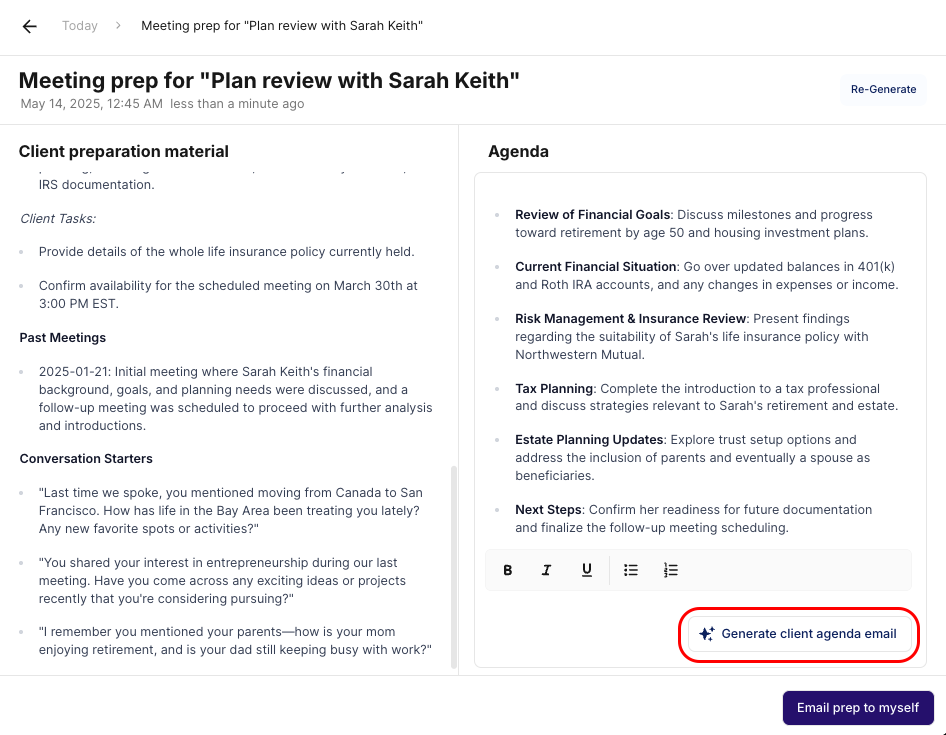
Prep for upcoming meetings on your Calendar by clicking the "Meeting Prep" buttons on the Today page. Focal pulls and summaries all past conversations to create preparation material, and an editable proposed agenda.

Client Agenda Emails
Edit the agenda to your liking, and generate a client agenda email based on the agenda and historical context.
Any further questions? Reach out at support@meetwithfocal.com.