Focal - Tips and Tricks
Last updated: April 17, 2026
Now that you've started using Focal, here are some additional tips to get the most out of your experience.
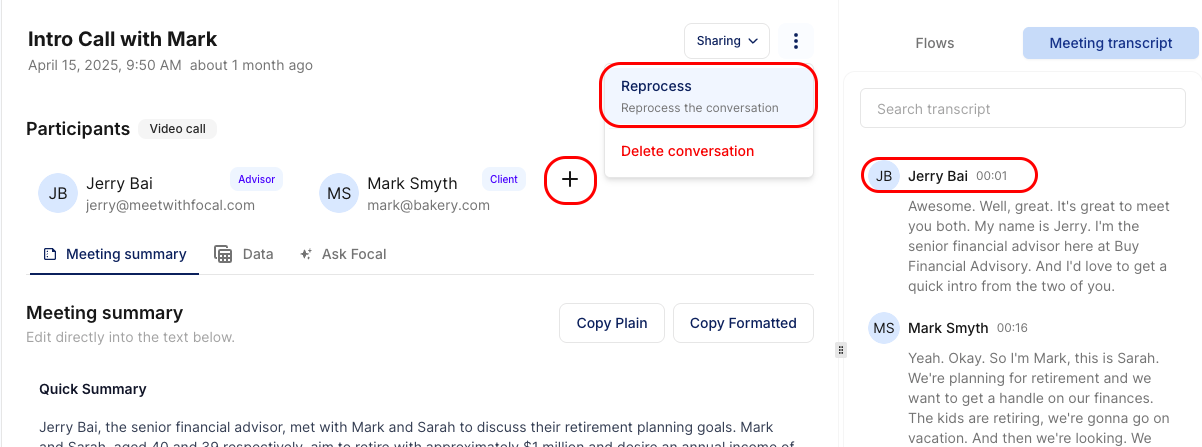
Summary Accuracy and Reprocessing: The “Reprocess” button on any meeting summary page will allow you to regenerate your meeting with new participants, new speakers, or a new summary template.
Connect your calendar and sync your CRM contacts to improve Focal's participant & speaker guessing
Select the specific calendar event when starting in-person meetings
Check and tag the correct participants and speakers after the meeting
Reprocess the meeting to regenerate the summary with your changes
For more tips on improving accuracy, see here.
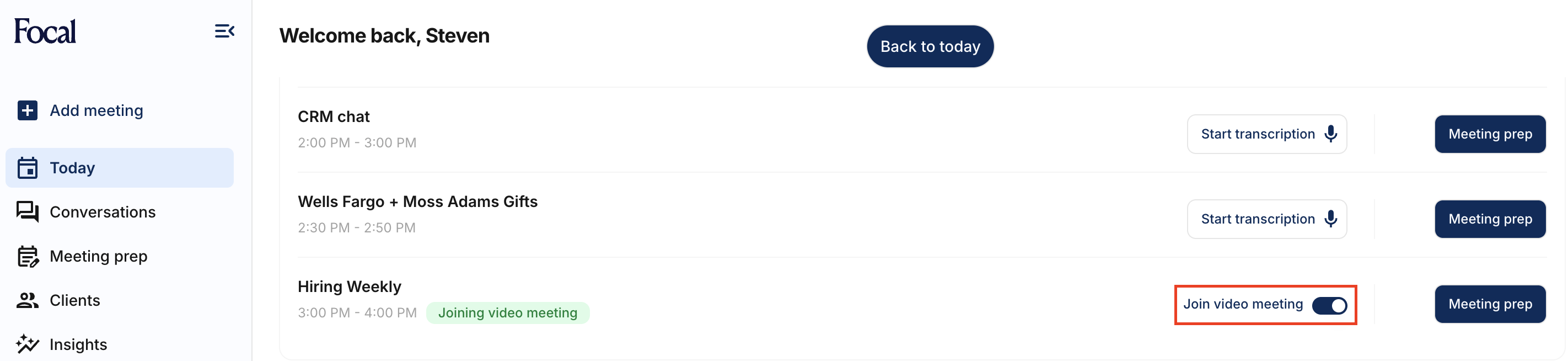
Meeting Control: Quickly toggle Focal on/off for upcoming meetings using the toggles on the “Today” tab.
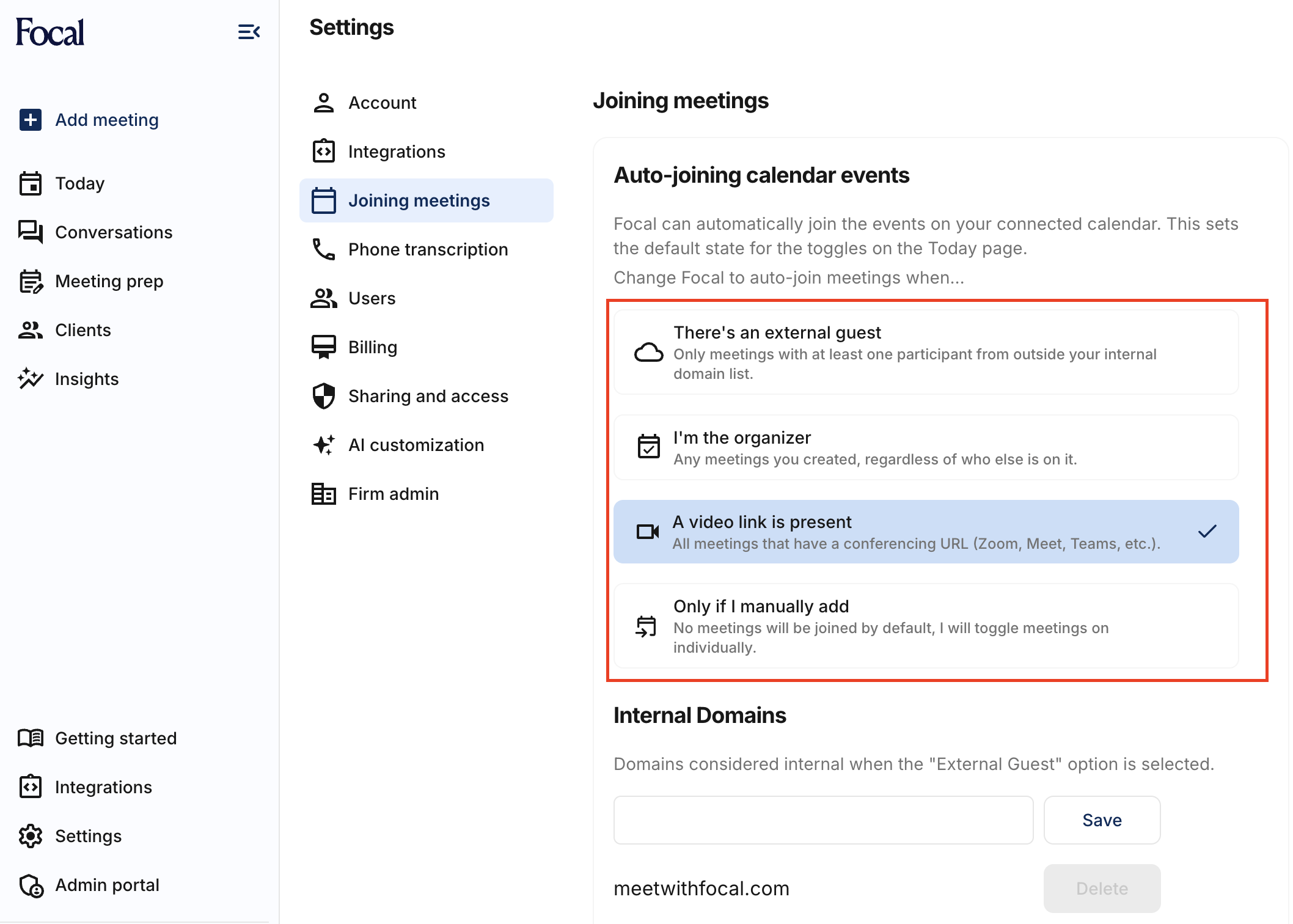
Default Attendance: By default, Focal joins meetings with external participants. Update these settings anytime:
Settings -> Joining Meetings -> Configure what meetings you want Focal to automatically join
In-Person Transcription: Capture in-person conversations using your laptop or mobile:
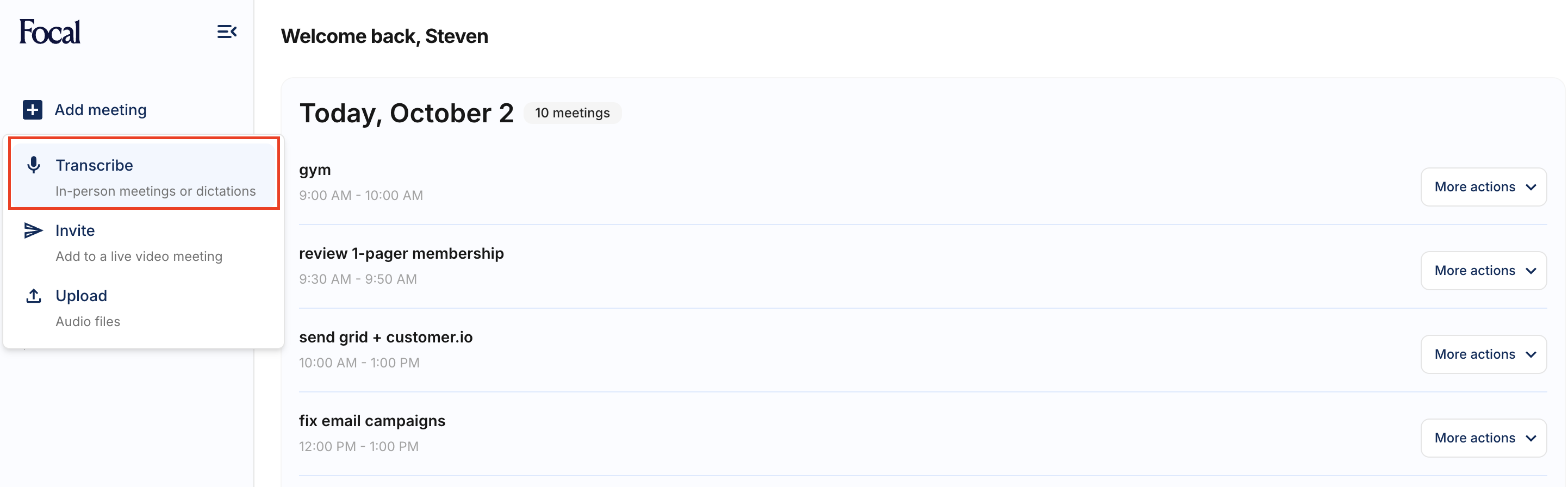
Impromptu meeting: Add meeting → Transcribe Today → Start transcription → Connect your Microphone
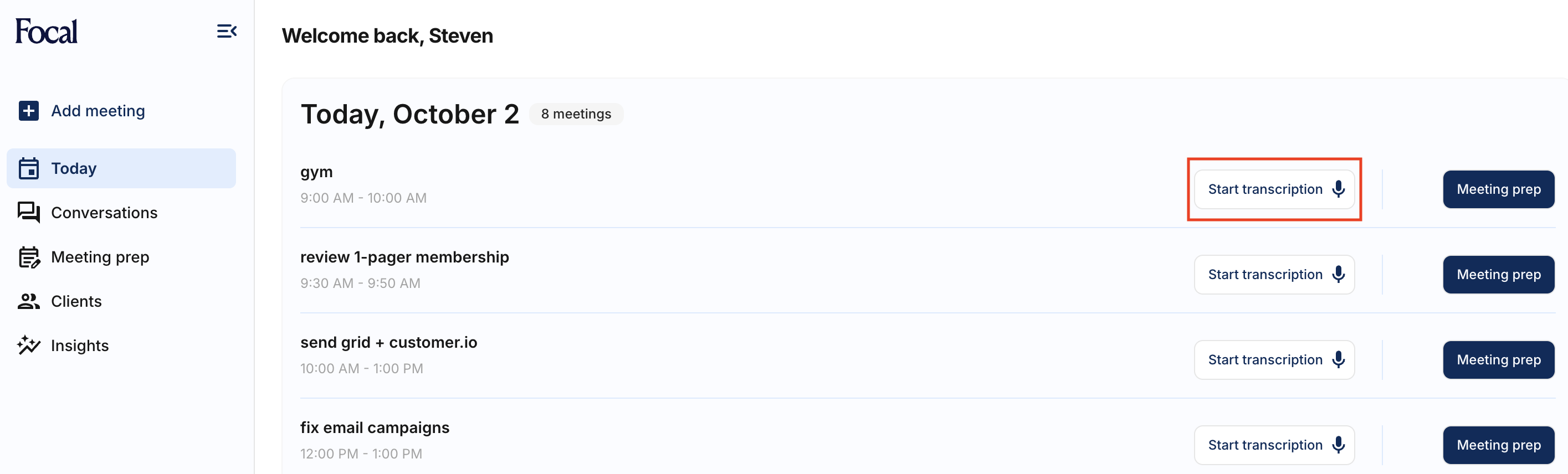
Capture pre-planned meetings that are in person: Today → Start Transcription → Connect your Microphone
If your microphone is not connected automatically, please click the "Try Again" button to enable Focal to access your device's microphone.
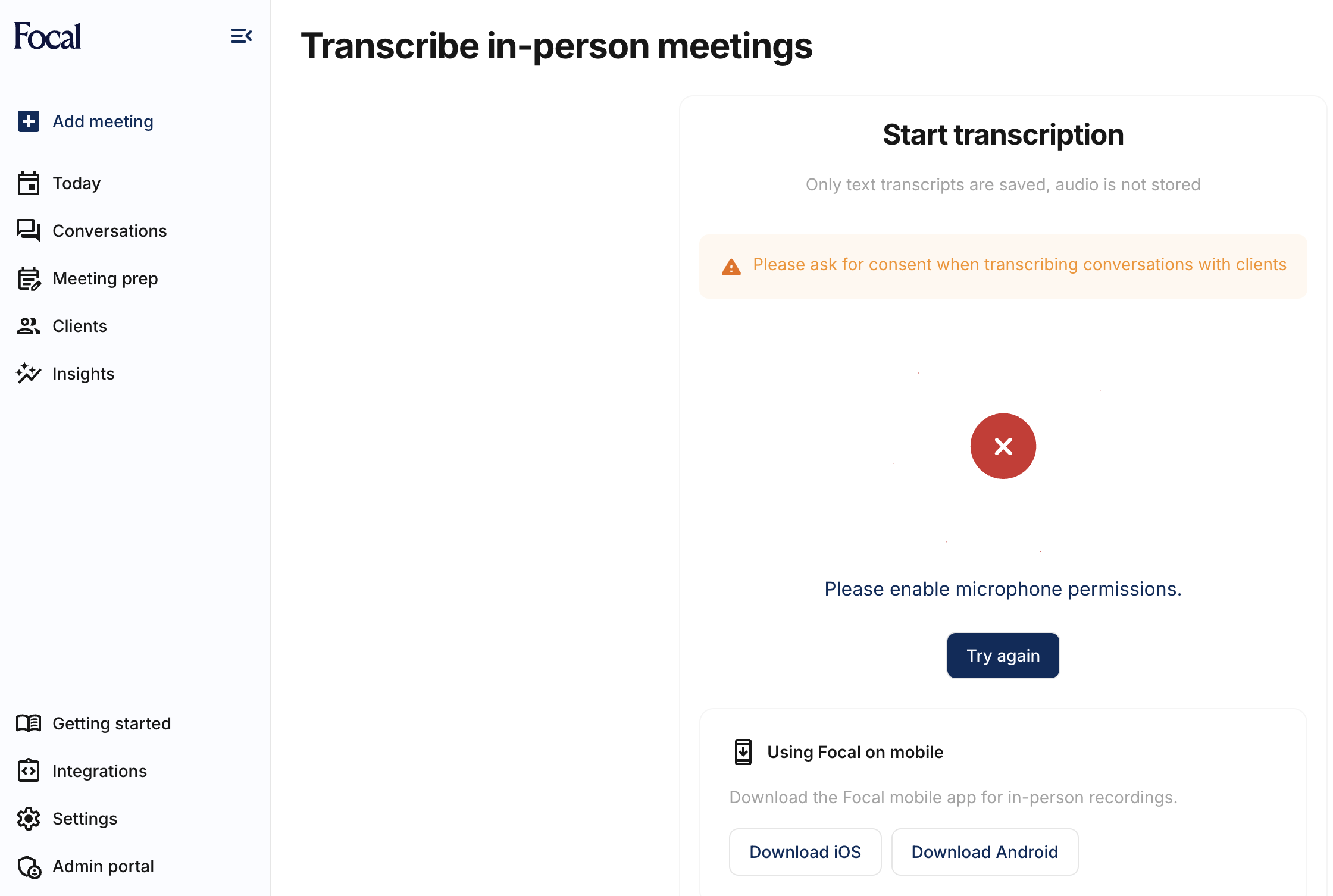
We recommend downloading the Focal Mobile App to use your phone to transcribe in-person meetings. Download link: iOS | Android
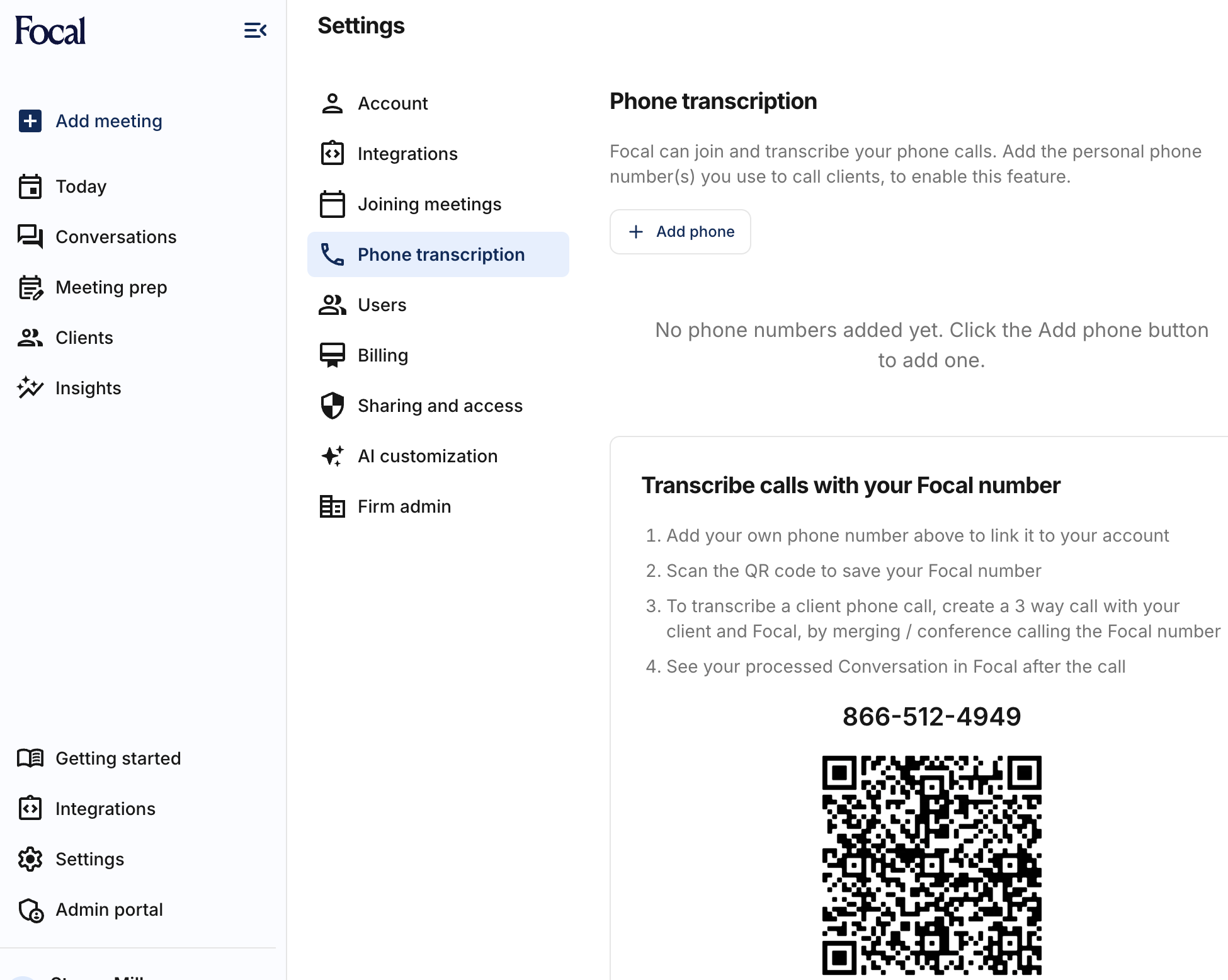
Phone Transcription: Add your direct phone number under “Phone transcription” setting in Integrations so Focal can identify which transcribed phone calls belong to your account.
Part 1: Setup Focal with your device
Step 1: Add your device number to Focal
Step 2: Scan the QR code to save the Focal number to your device
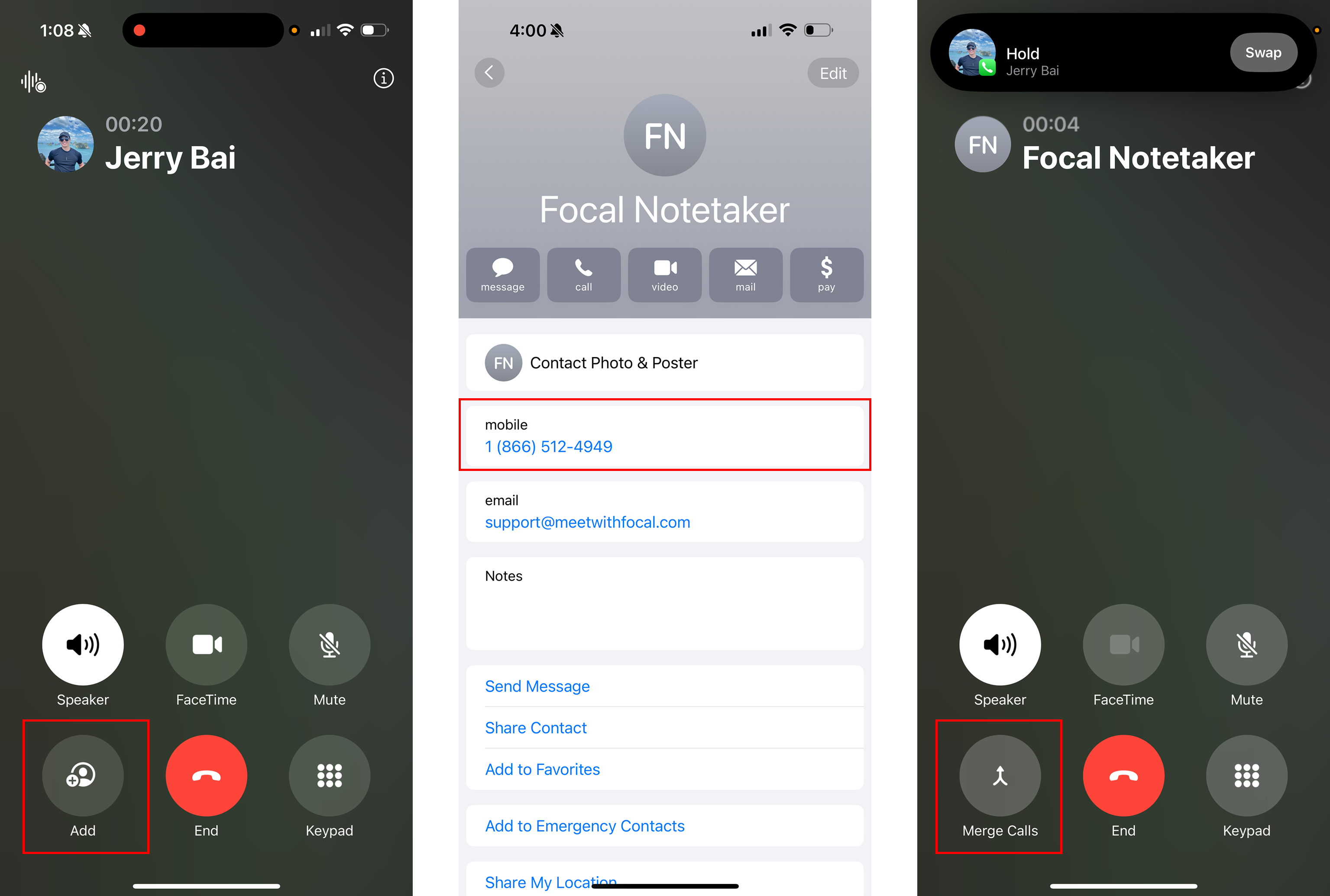
Step 3: During your client call, create a 3 way call with your client and Focal
Part 2: Merge Your Call (Works on iOS / Android / any Desktop VoiP service)
Step 1: On your device click on the "Add" button
Step 2: Call the Focal number
Step 3: Click on "Merge" call
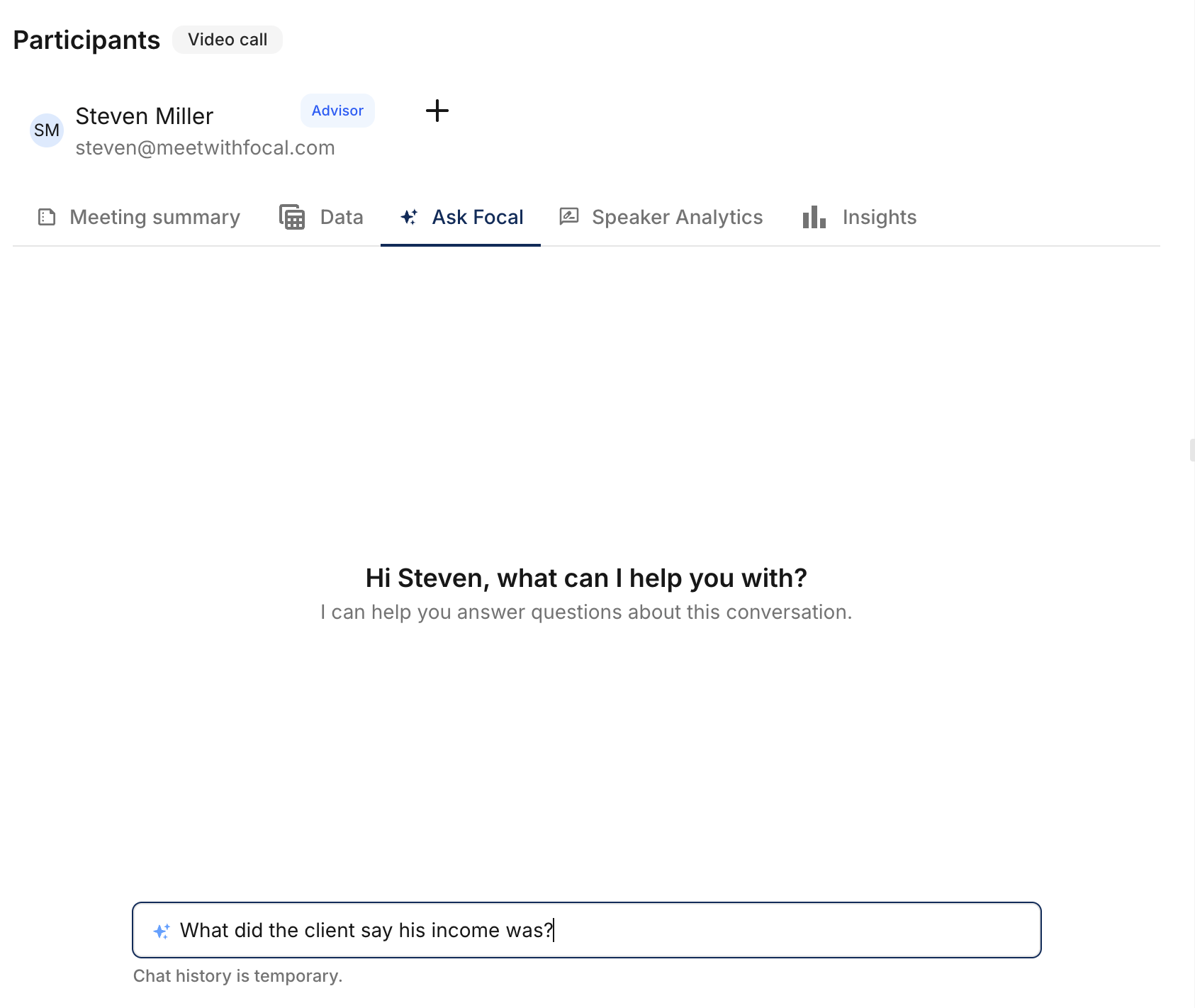
Ask Me Anything: You can ask Focal anything about a previous call (i.e what was my client's income) as well as broader questions that pull from your CRM (What client has the largest AUM)
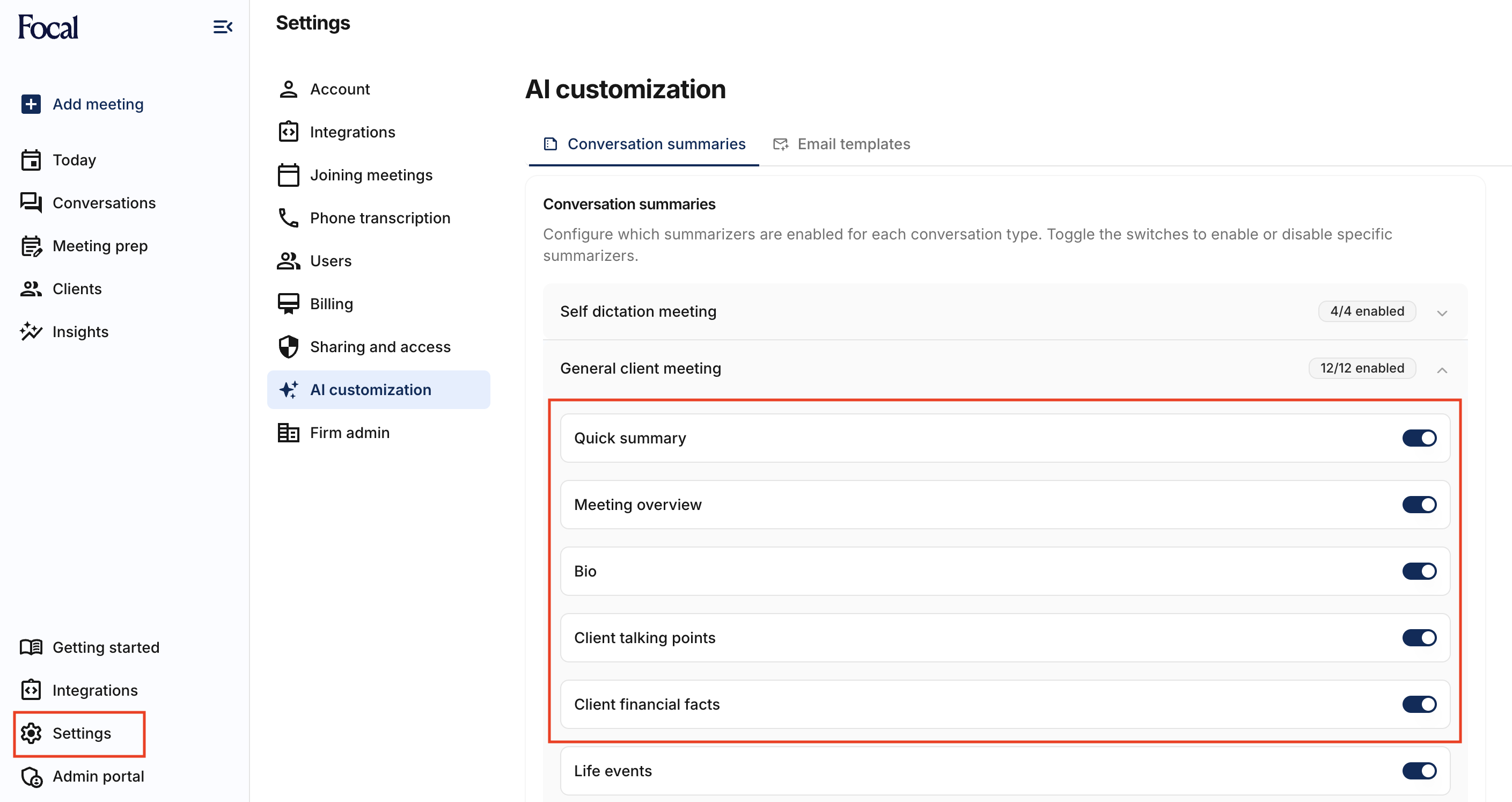
Customize Summaries and Follow-up Emails: Navigate to Settings → AI customization to toggle different meeting sections on/off and update your generated follow-up email template.