IT Setup: Calendar Authorization
Last updated: May 29, 2025
Connecting Your Calendar
Focal integrates with your calendar to display your upcoming meetings on the Today page, and auto-joins your video meetings using the video meeting link from the event description.
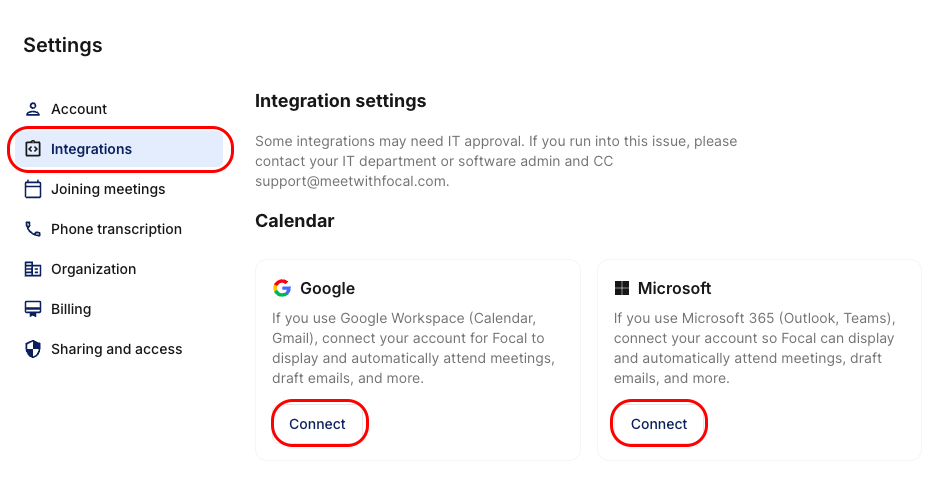
If your firm's IT department requires approval within Microsoft 365 / Google Workspace for all 3rd party applications, you will be blocked from connecting your Calendar, and will need admin approval.
Admin Approval: Microsoft 365
Attempt to connect your Microsoft 365 account inside of Focal, and submit a request on the approval screen.
Log into the MS 365 Admin Portal with an admin account.
Go to Entra ID > Enterprise Applications > Activity > Admin Consent Requests.
Find Focal, and approve the app.
Article: https://learn.microsoft.com/en-us/entra/identity/enterprise-apps/review-admin-consent-requests
Admin Approval: Google Workspace
Attempt to connect your Google Workspace account inside of Focal, and submit a request on the approval screen.
Log into the Google Admin Console with an admin account.
Go to Security > Access and data control > API controls > Manage Third-Party App Access
Find Focal, and approve the app.
Article: https://support.google.com/a/answer/7281227
Any further questions? Reach out at support@meetwithfocal.com.