How do I enable Zoho CRM API Access for Focal / Cloven?
Last updated: April 3, 2026
Answer
For Focal to sync with your Zoho CRM, API Access must be enabled for the relevant user profiles in Zoho. This is a one-time setup that requires Zoho CRM admin privileges.
Note: This guide also applies to Cloven configurations. The steps are identical — enabling API access in Zoho is required for both Focal and Cloven integrations.
Prerequisites
Admin credentials for your Zoho CRM account
Know which user profile(s) need API access (e.g., Administrator, Standard, or a custom profile)
Steps
Step 1: Log in to Zoho CRM
Sign in to your Zoho CRM account at crm.zoho.com using your admin credentials.
Step 2: Open Setup
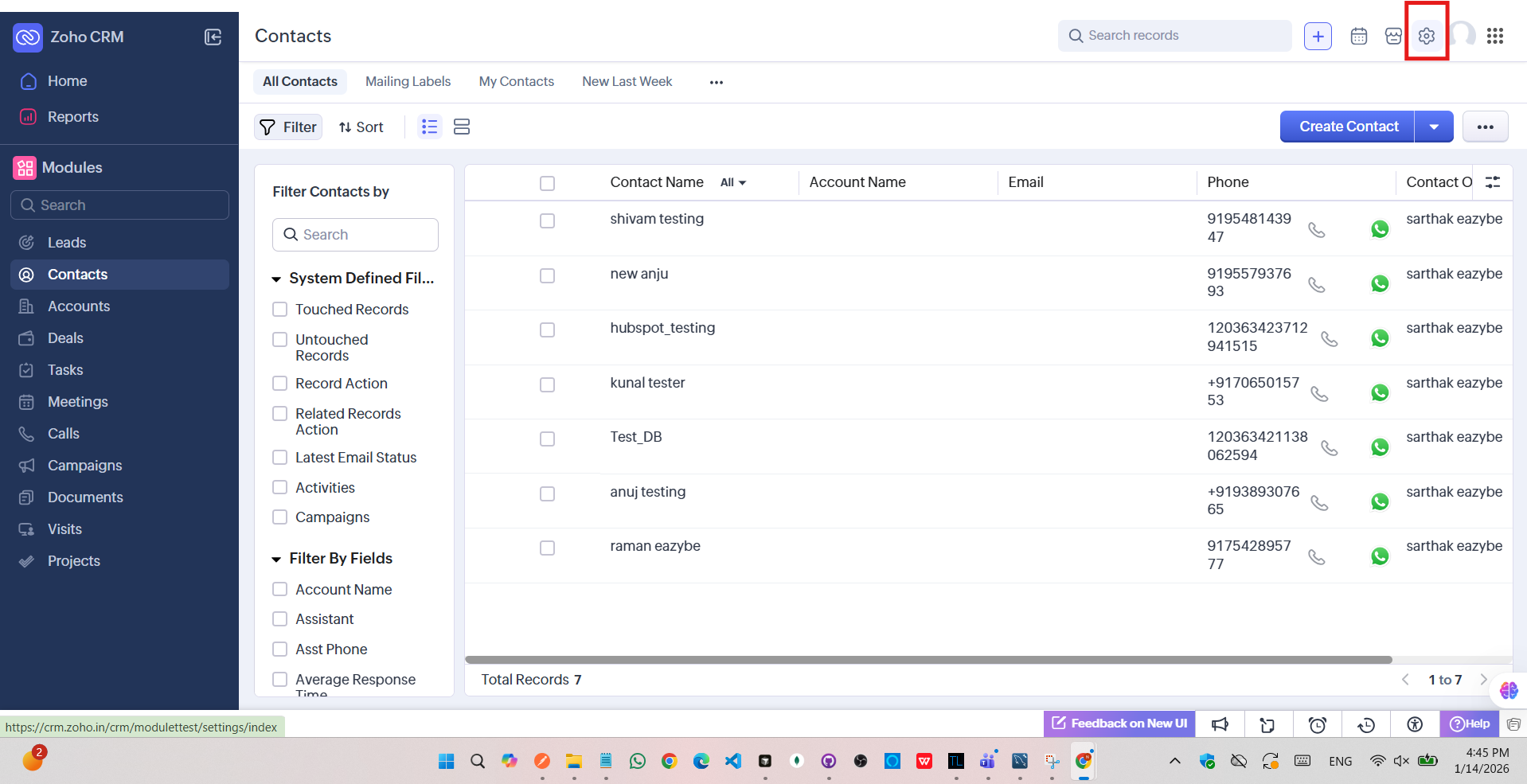
Click the gear icon (Settings) in the top-right corner of the page.
Step 3: Navigate to Profiles
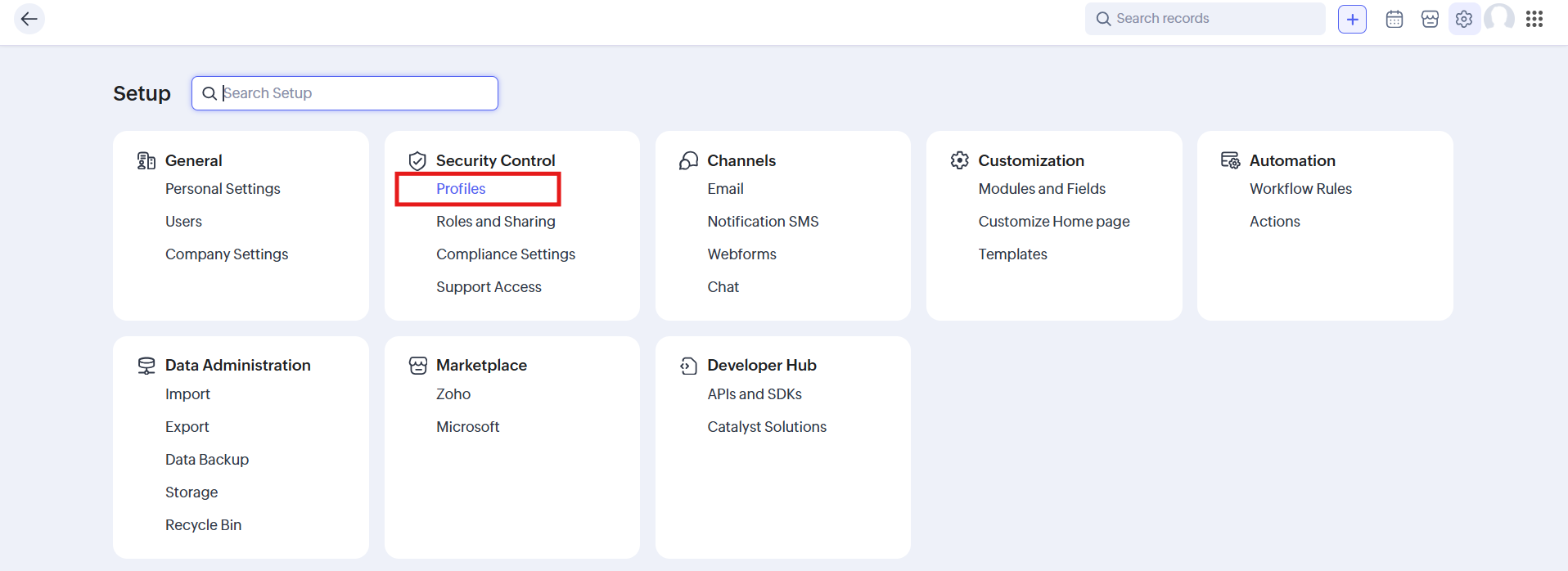
In the Setup page, under Security Control, click Profiles.
Step 4: Select the user profile
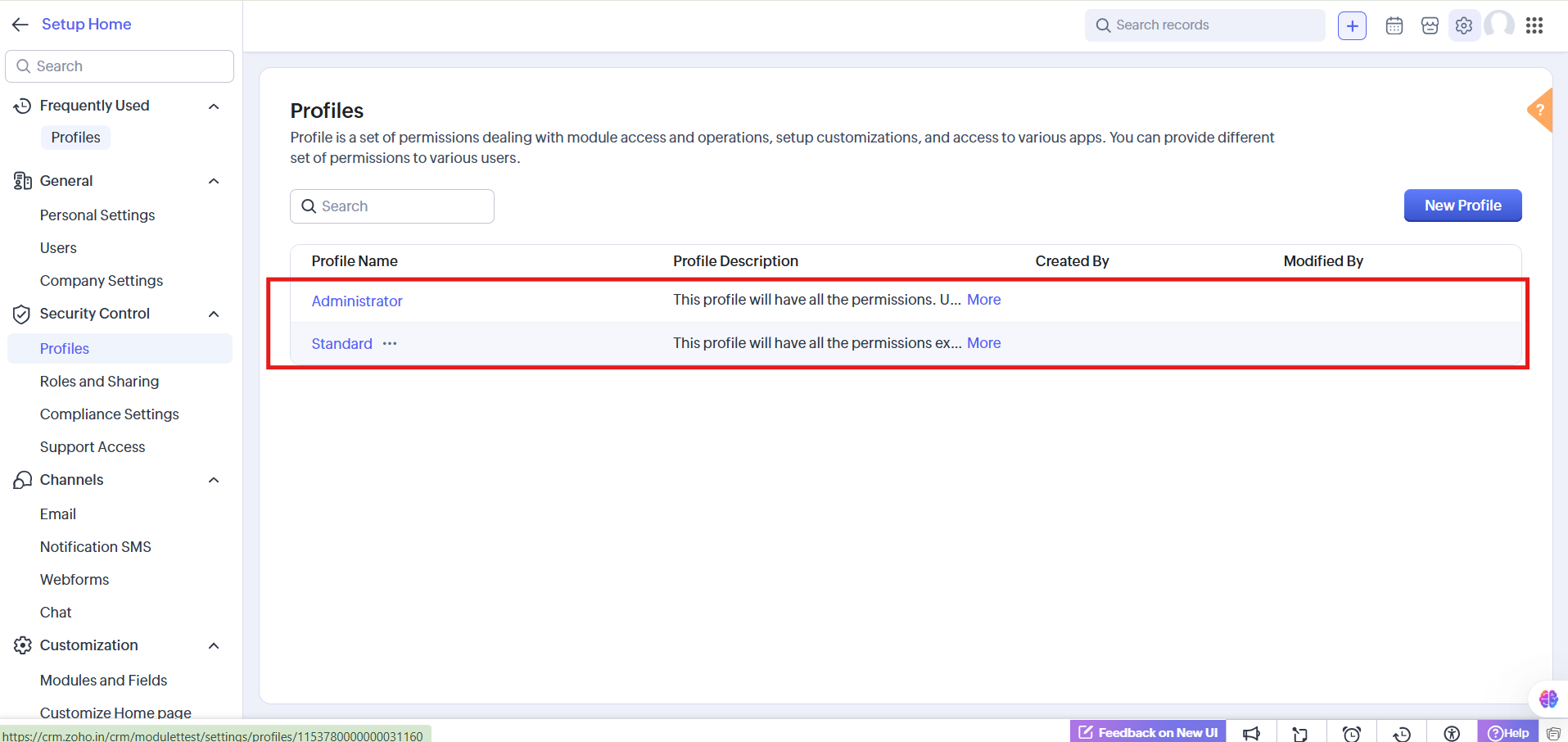
Click on the profile you want to enable API access for (e.g., Administrator or Standard).
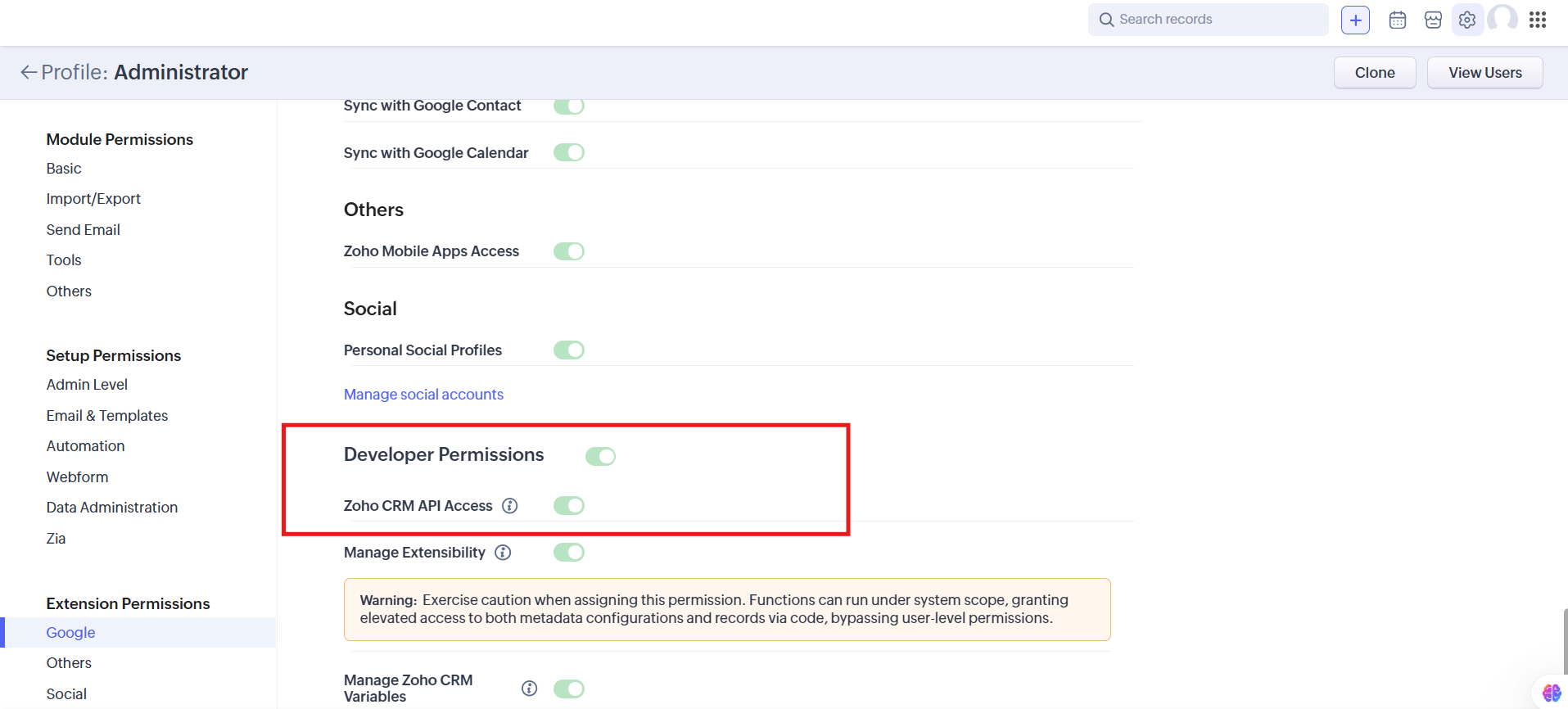
Step 5: Scroll to Developer Permissions
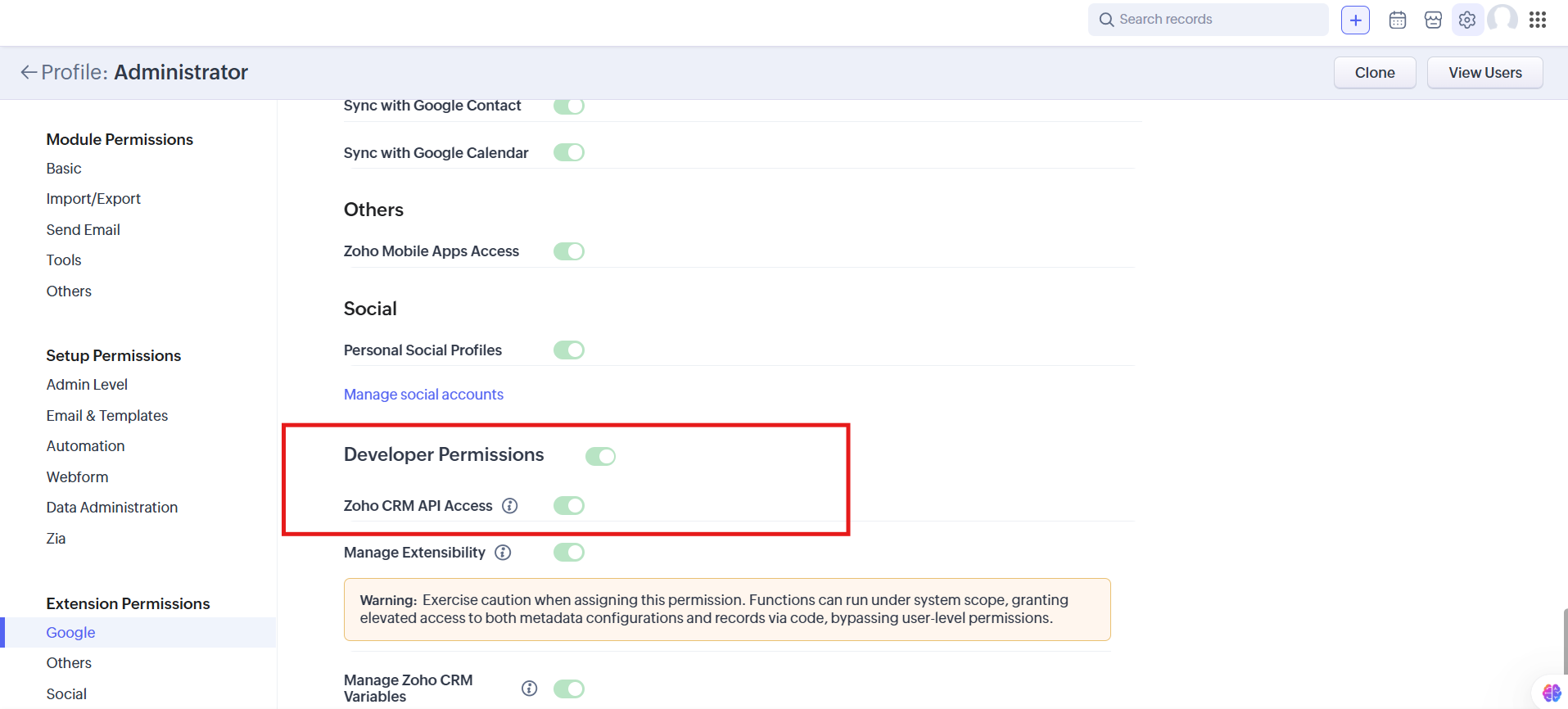
Scroll down to the bottom of the profile settings until you see the Developer Permissions section.
Step 6: Enable Zoho CRM API Access
Toggle Zoho CRM API Access to ON. The switch will turn green when enabled.
Step 7: Save your changes
Click Save to apply the updated permissions.
How to verify it worked
Confirm the Zoho CRM API Access toggle shows as ON for the correct profile
Test user authentication through the Focal or Cloven integration
Verify that API calls no longer return permission errors
Troubleshooting
API access still blocked: Make sure you enabled it on the correct profile. Check which profile is assigned to the user connecting Focal / Cloven by going to Setup > Users.
Session expired errors: Log out and log back in to Zoho CRM, then retry the connection.
IP restriction errors: Check if your Zoho org has IP restrictions enabled under Security Control.
OAuth scope errors: Ensure the required OAuth scopes are authorized for the Focal / Cloven connection.
Security best practices
Only enable API access for profiles that need it for the Focal / Cloven integration.
Avoid granting broad API access to all profiles unnecessarily.
Conduct regular audits of which profiles have API access enabled.
Revoke API access promptly for profiles that no longer need it.
Need help?
If you have any questions, reach out to the Focal support team at support@meetwithfocal.com.